
Camera and DJ audio enter LiveShell Input A, the BrightSign graphic enters Input B, and the LiveShell program output feeds both Castr and the video wall.
On-site technical guide
CAP CITY
BREAKING JAM
Livestream + video wall IMAG setup and operation
DateSaturday, Aug. 15, 2026
VenueLansing Shuffle
Address325 Riverfront Drive
Lansing, MI 48912
Lansing, MI 48912
Primary field reference
Wiring diagram

Operator rule
A red = camera live. B red = graphic live.
01
Follow steps 1-4
Connect the system
1
Network first
Put the Verizon hotspot outside where it has the best cellular signal. Then make these three Ethernet patches:
Hotspot LAN 1→Switch LAN 1
Switch LAN 2→LiveShell NETWORK
Switch LAN 3→Belkin 6-in-1 hub on MacBook Pro - ETHERNET
2
Camera and DJ audio
The DJ mixer provides a stereo feed to the camera. The camera embeds the DJ audio in SDI. Audio and Video travel together over the SDI cable.
DJ XLR L→XF605 AUDIO L / CH1
DJ XLR R→XF605 AUDIO R / CH2
XF605 SDI OUT→MD-CROSS SDI IN
MD-CROSS HDMI OUT→LiveShell HDMI A / IN 1
Camera audio: set both XLR inputs for the feed actually provided by the DJ mixer, normally LINE level. Use manual gain and confirm healthy CH1/CH2 meters without clipping.
3
Full-screen graphic
BrightSign HDMI→LiveShell HDMI B / IN 2
Power the BrightSign with its prepared microSD card installed. It should continuously output the event graphic.
4
Program output to the video wall
LiveShell OUTPUT→MD-HX HDMI IN
MD-HX SDI OUT 1A→BMD SDI IN
BMD HDMI OUT→Lansing Shuffle HDMI Input
Connection location: the Lansing Shuffle HDMI Input is on the south end of the bar, toward the main parking lot. A bartender can point you to it.
The LiveShell HDMI output is the actual program feed. Whatever is on the wall is also what the LiveShell is encoding.
02
Front panel + browser
Operate LiveShell
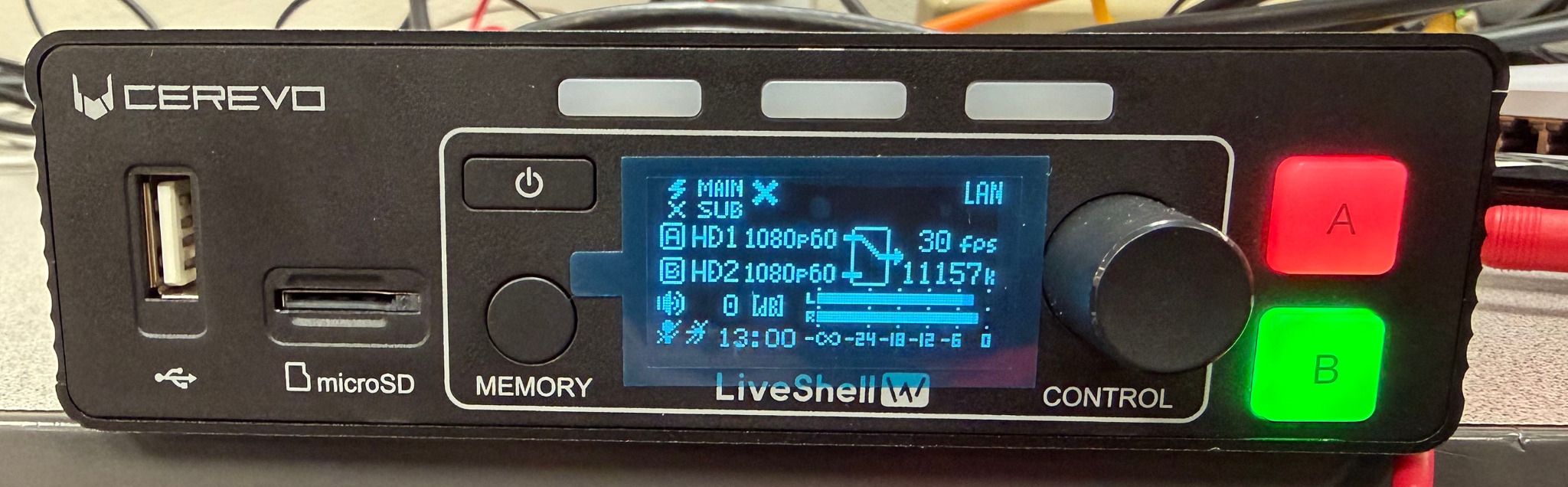
Red is the selected program source.
A
Camera + DJ audio
Input A / HDMI IN 1
Use for the live battle and workshop.B
Full-screen graphic
Input B / HDMI IN 2
Use before program, during holds, and after the event.DJ audio is already set to continue under both sources
The LiveShell W is already configured with HDMI 1 audio unmuted, Audio-Follow-Video (AFV) OFF, and HDMI 2 audio muted. Do not change these settings. This keeps the DJ feed live when the BrightSign graphic is selected.
Open LiveShell Studio
Find the current IP and login on the front panel
- Press the control dial to open Main Menu.
- Turn to Network, then press A to select.
- Turn to Web Login, then press A.
- On the Mac, browse to the URL shown and enter the displayed user and password.
Use the URL, user, and password exactly as shown on the device. The IP address may change when the network changes.
Step 1
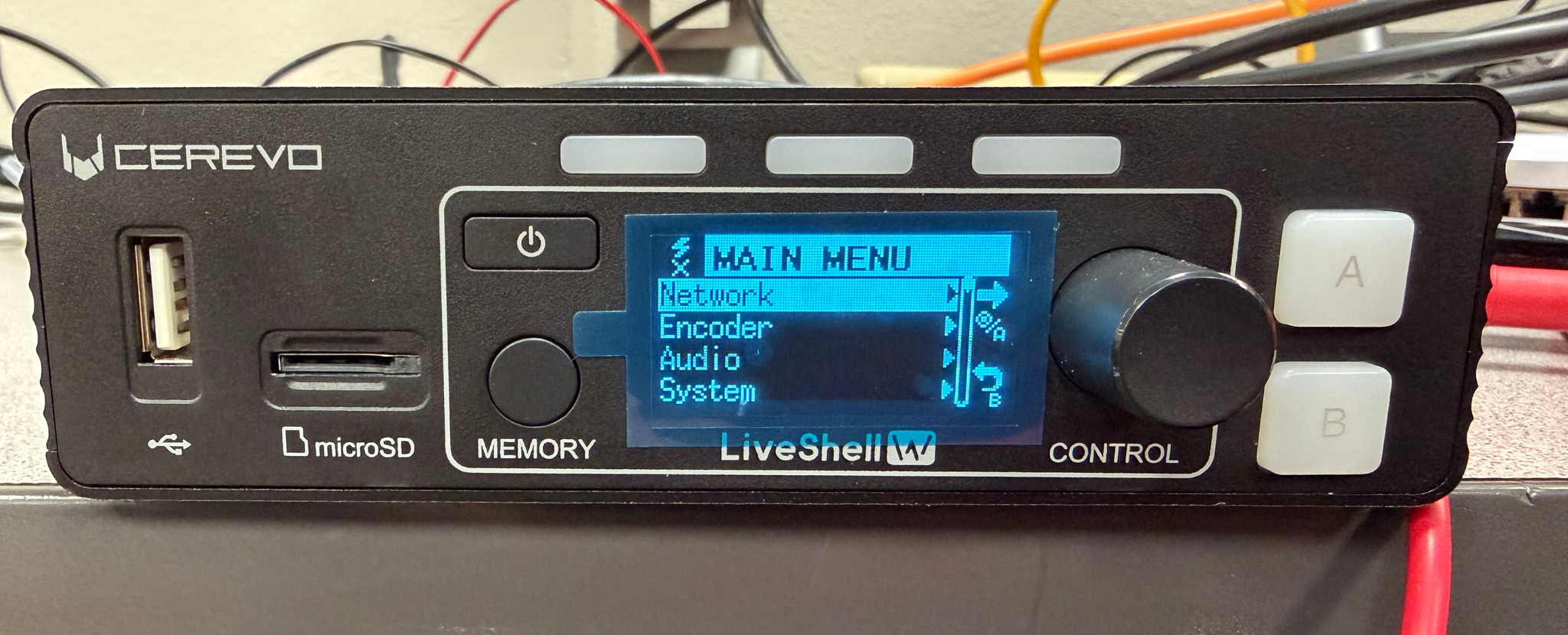
Step 2
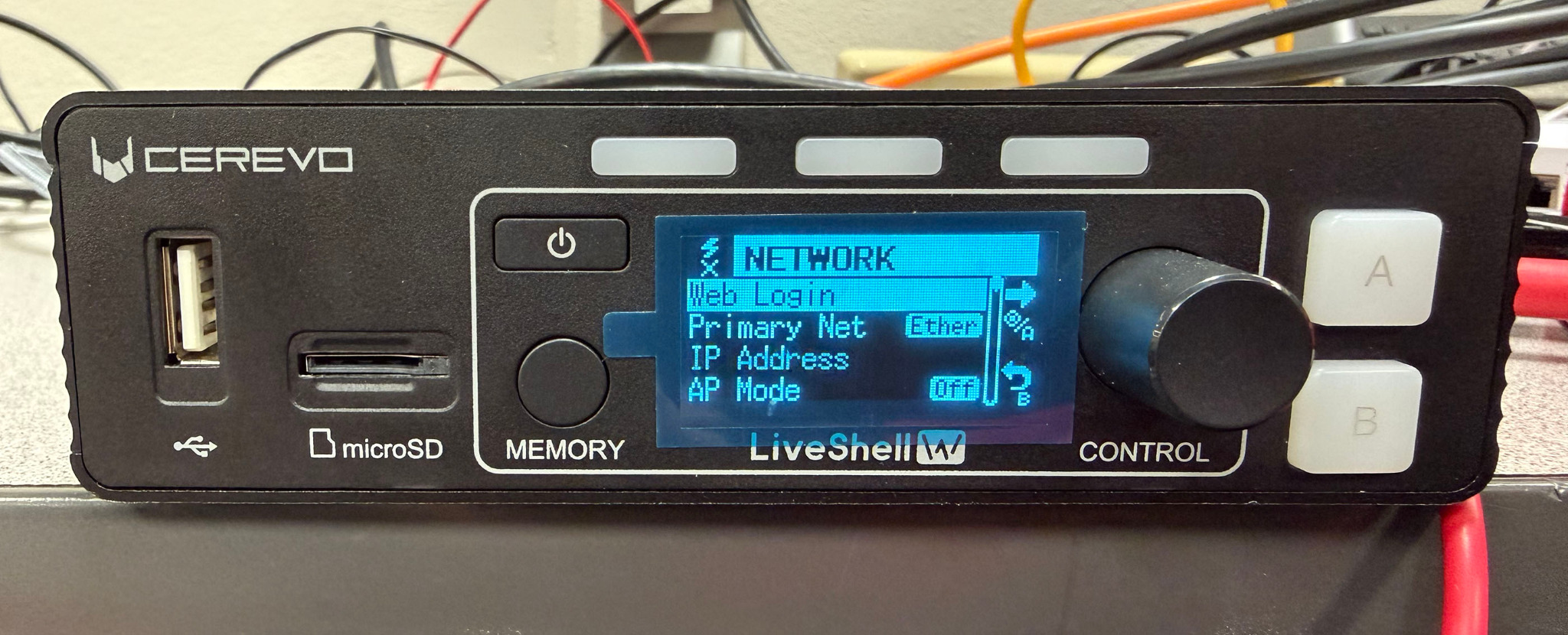
Step 3
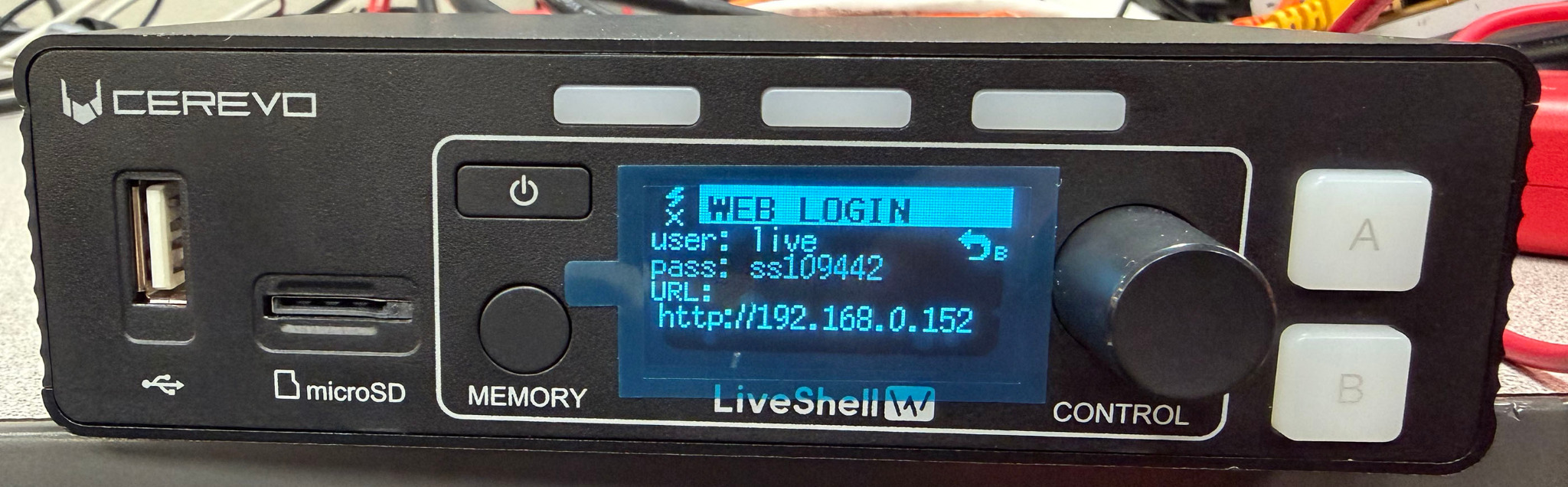
03
Stop, verify, then send
Go live
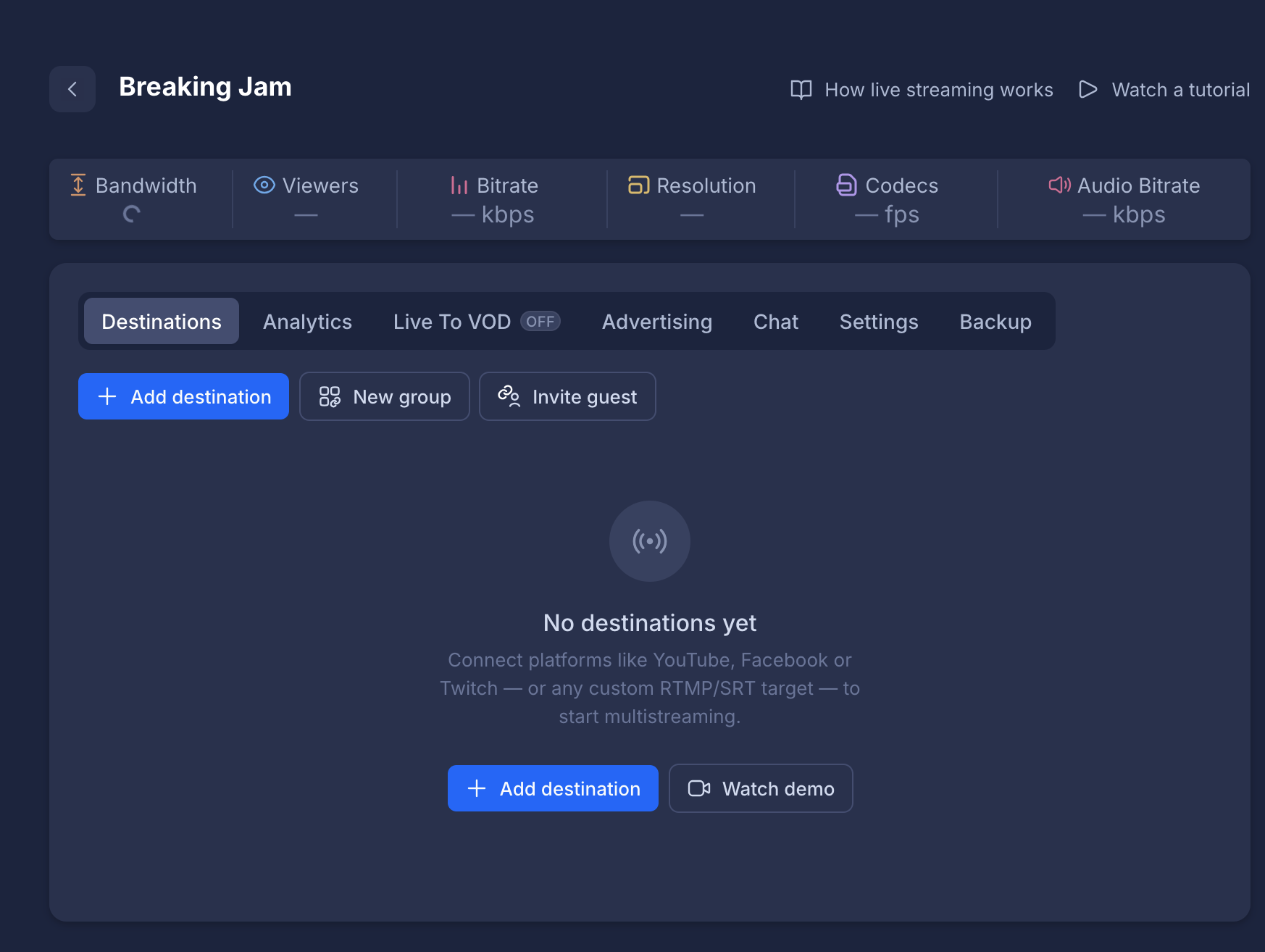
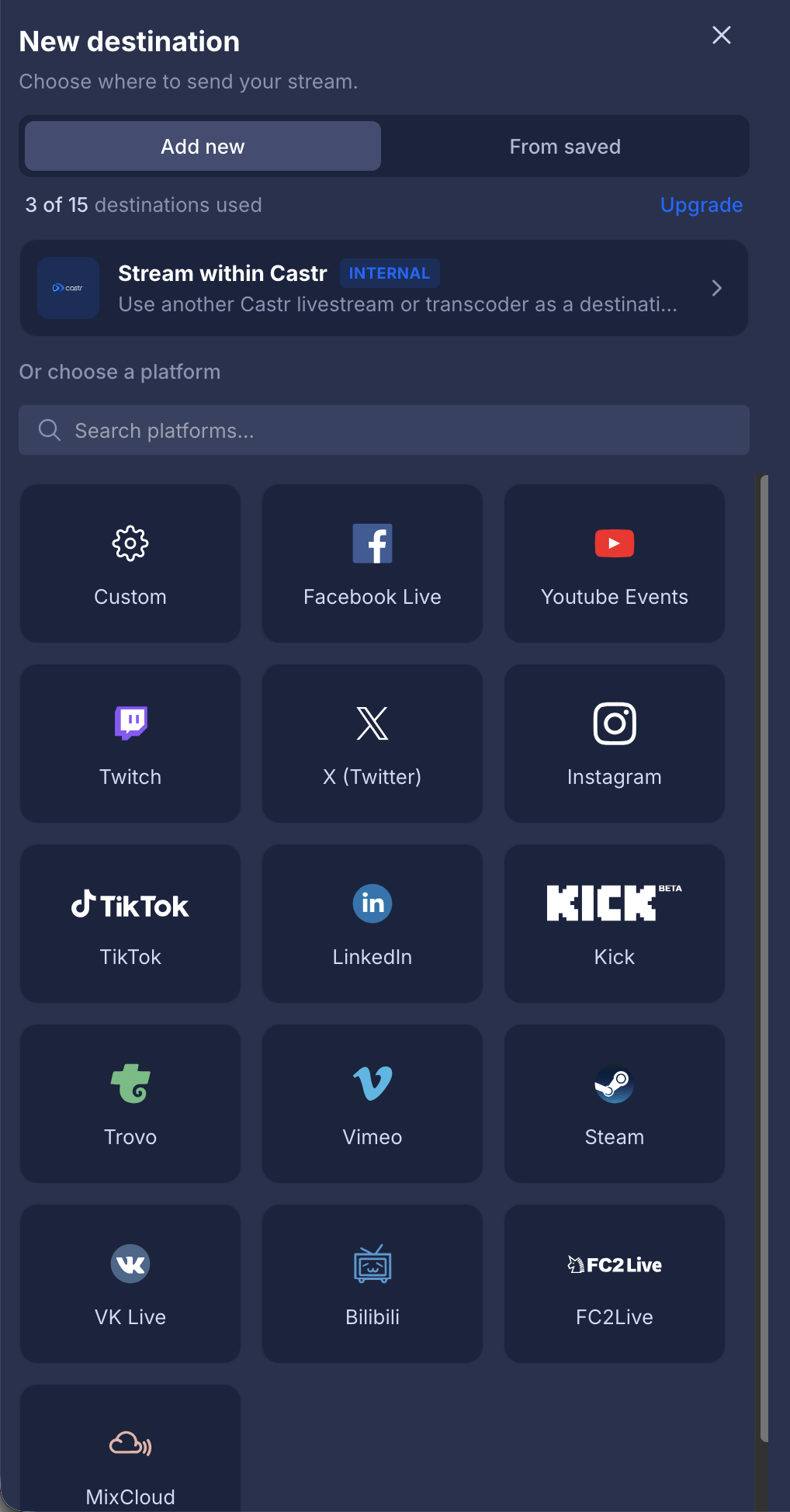
Choose and connect social destinations
In Castr, connect whichever destinations Ozay wants for the event, including Facebook, Instagram, or any other selected platforms. Log into the appropriate accounts and confirm each chosen destination is ready before the encoder starts.
Start the Castr channel
In LiveShell Studio, select the already configured Cap City / Castr RTMP channel and click Start Streaming. Do NOT click START ALL.
Confirm the stream is live
- Program appears on the video wall.
- Castr preview has video and audio.
- Each selected social destination shows the live stream.
Castr
Connect social destinations
Step 1
Step 2
Final checklist
Press A for camera. A turns red after the 1-second mix.
Press B for the graphic. B turns red after the 1-second mix.
Take B, stop the stream in LiveShell Studio, and confirm Castr stops receiving before shutdown.
04
Troubleshooting
Fix it fast
No video on the wall
- Confirm BMD HDMI OUT is connected to the Lansing Shuffle HDMI Input. The input is on the south end of the bar, toward the main parking lot. Ask a bartender to point it out if needed.
- Confirm the MD-HX and Blackmagic converter are powered.
- Check the complete signal path: LiveShell OUTPUT → MD-HX HDMI IN → MD-HX SDI OUT 1A → BMD SDI IN → BMD HDMI OUT → Lansing Shuffle HDMI Input.
- On the MD-HX, open Input Status.
H:should show the LiveShell HDMI input as 1080p60.D:should show the scaler output as 1080p59.94. - If
H:does not show 1080p60, check the LiveShell HDMI output and HDMI cable before changing the scaler. - If LiveShell Studio program is also blank, move upstream to the selected input.
MD-HX scaler
Set the video wall output format
Use this when the MD-HX detects the LiveShell HDMI signal but the video wall remains blank.
- Open
SCALING > OUTPUT FORMAT. - Select
3G 1080p59.94. - Allow several seconds for the video wall to lock to the new signal.
- Press BACK twice to return to Input Status.
- Confirm
D:now shows 1080p59.94. - If an
Sappears in the upper-right corner, wait for it to disappear before disconnecting power.
SCALINGOUTPUT FORMAT3G 1080p59.94
If changing the scaler format does not affect the output, confirm:
CONTROL > SDI OUT SOURCESCALERCONTROL > OUTPUT 1 IS LOOPNOIf the MD-HX shows H: 1080p60 and D: 1080p59.94 but the wall remains blank, check the SDI cable, Blackmagic converter, HDMI cable, and Lansing Shuffle HDMI Input individually.
Castr receives nothing
- Confirm the Mac reaches the internet over the wired connection.
- Confirm LiveShell main status shows LAN and an IP address.
- In LiveShell Studio, confirm the intended Castr channel is actually streaming.
- If settings changed, compare the RTMP URL and stream key with the Castr event. Keep Append password to key unchecked.
- Do not replace the saved target until the mismatch is identified.
Video works, but audio is missing or distorted
- Confirm the XF605 has good audio levels on both channels.
- Confirm LiveShell HDMI 1 audio is unmuted and its mixer meter moves.
- Set AFV off and HDMI 2 audio muted.
- If local meters are healthy, inspect the Castr ingest meter or preview next.
Input A is blank
- Confirm XF605 is on and SDI output is enabled.
- On the MD-CROSS Input Status screen, SDI IN should show a detected 3G 1080p59.94/60 signal from the XF605, not NO SIGNAL. The scaling output should show 1080p60.
- Confirm the cable lands on LiveShell HDMI A / IN 1.
- LiveShell should report HD1: 1080p60. If not, verify the MD-CROSS output format.
- Reconnect sources, then restart LiveShell only after network and inputs are present.
Input B is blank or wrong
- Confirm the BrightSign is powered and its prepared microSD card is installed.
- Confirm BrightSign HDMI goes to LiveShell HDMI B / IN 2.
- LiveShell should report HD2: 1080p60.
- Press B and check the wall. If the source changes but content is wrong, the problem is at the BrightSign or its card.
05
Connection reference
Patch list
| Cable | From | To |
|---|---|---|
| SDI | XF605 - SDI OUT | MD-CROSS V2 - SDI IN |
| HDMI | MD-CROSS V2 - HDMI OUT | LiveShell W - HDMI A / IN 1 |
| HDMI | BrightSign HD224 - HDMI | LiveShell W - HDMI B / IN 2 |
| Ethernet | Verizon hotspot - LAN 1 | USW-Lite-8-PoE - LAN 1 |
| Ethernet | USW-Lite-8-PoE - LAN 2 | LiveShell W - NETWORK |
| Ethernet | USW-Lite-8-PoE - LAN 3 | Belkin 6-in-1 hub on MacBook Pro - ETHERNET |
| USB-C | Belkin hub - integrated USB-C | MacBook Pro - USB-C |
| HDMI | LiveShell W - OUTPUT | MD-HX - HDMI IN |
| SDI | MD-HX - SDI OUT 1A | BMD Bidirectional - SDI IN |
| HDMI | BMD Bidirectional - HDMI OUT | Lansing Shuffle HDMI Input |
| XLR | DJ mixer - LEFT | XF605 - AUDIO L / CH1 |
| XLR | DJ mixer - RIGHT | XF605 - AUDIO R / CH2 |
06
End-of-day teardown
Pack up
Check off each item as it is packed after the event. Progress is saved on this device.
Pack-up progress0 / 24